Set up WebMirror
Install the app, turn on the hotspot and open one address in the Tesla browser. It takes a few minutes.
1. Install the app
- Download the APK from the latest release.
- Open it on the phone. Android asks you to allow installs from the browser or file manager you used. Allow it for that app only.
- Open WebMirror and follow the setup checklist on Home.
Download for AndroidVersion 0.3.3 · 2.8 MB
WebMirror needs Android 10 or newer and a phone that can share a Wi-Fi hotspot. Google Play is planned.
2. Start mirroring in the car
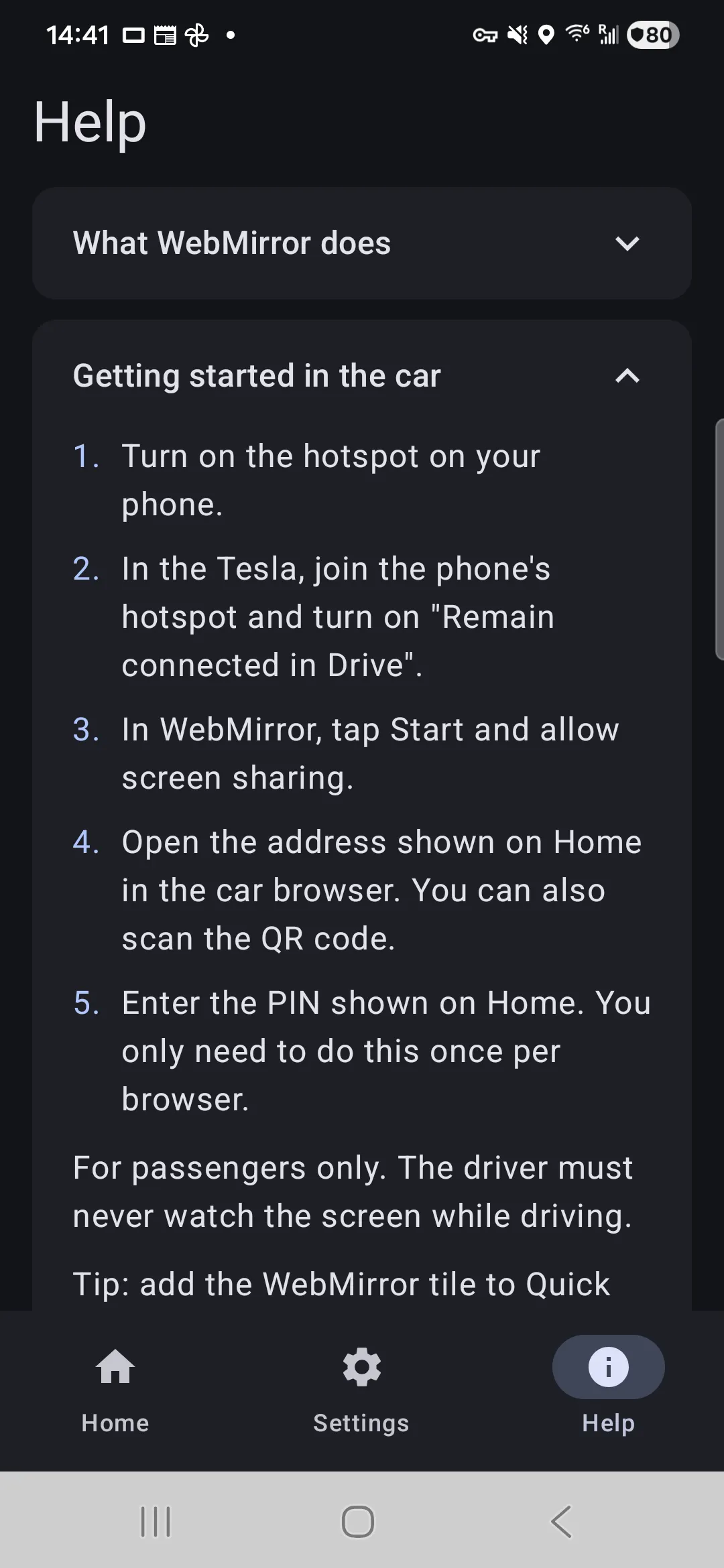
- Turn on the hotspot on your phone.
- In the Tesla, join the phone's hotspot and turn on Remain connected in Drive.
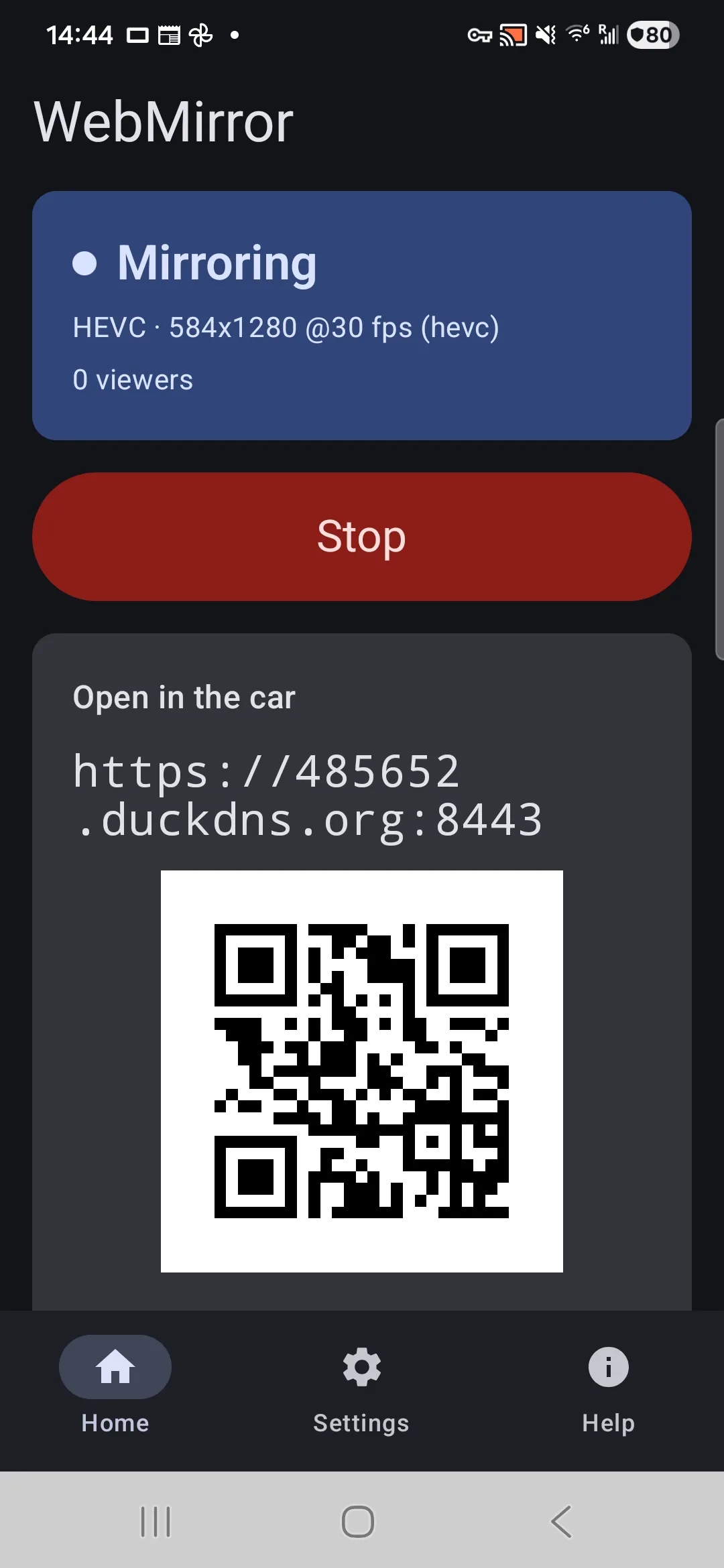
- In WebMirror, tap Start and allow screen sharing.
- Open the address shown on Home in the car browser. You can also scan the QR code.
- Enter the PIN shown on Home. You only do this once per browser.
For smooth video, also set up a free secure address. On plain http the picture is less smooth.
3. Control the phone from the car
Remote control lets the person in the car tap the mirrored picture to operate the phone. It needs one permission: the WebMirror remote control accessibility service. It performs the touches sent from the car. It does not read your screen.
- Switch on Allow control from the car on Home.
- If it says "Needs permission", open Accessibility settings, choose WebMirror remote control and switch it on.
To turn it off, switch off "Allow control from the car". To remove the permission completely, switch the service off in Android's Accessibility settings.
Typing from the car
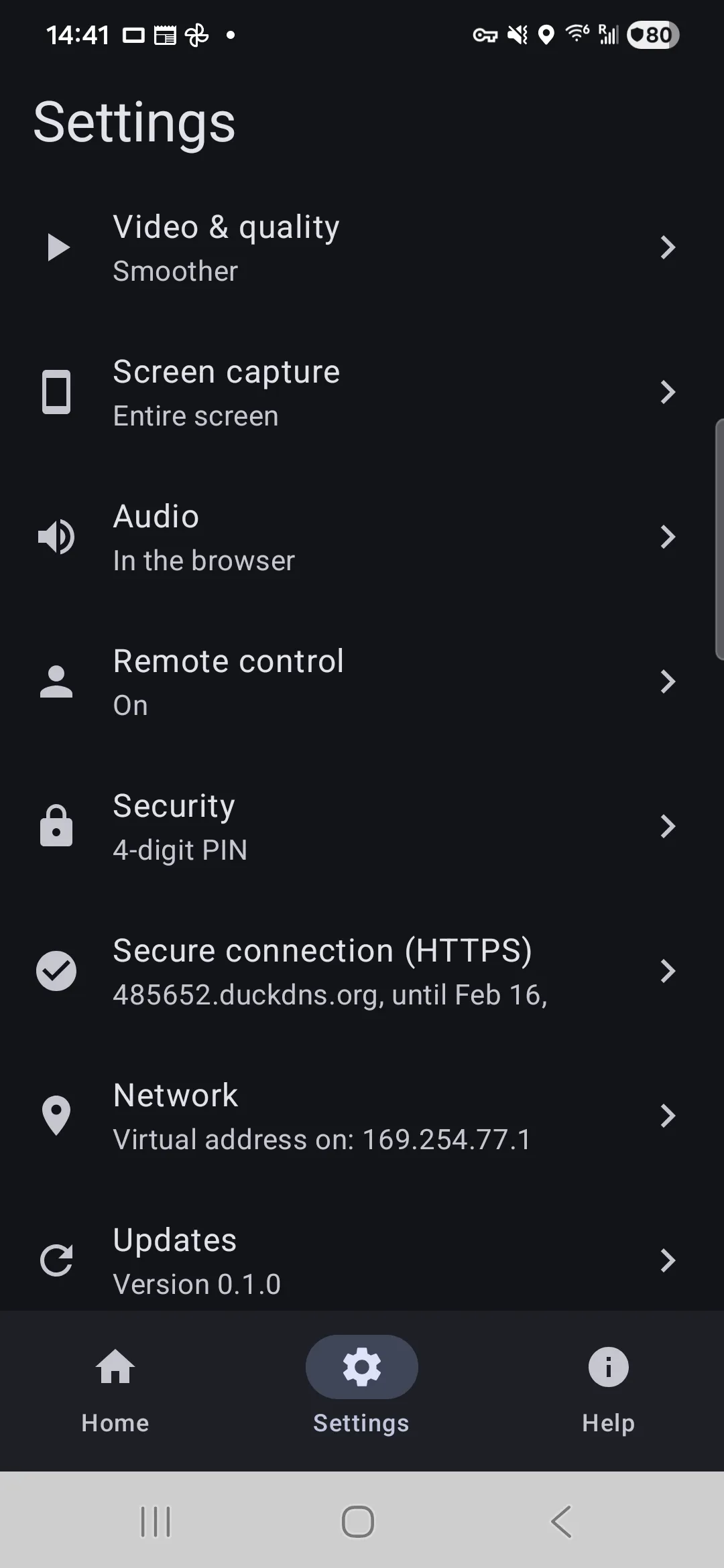
Open Settings, then Remote control, then "Keyboard for typing from the car".
- Phone keyboard (default): the phone's keyboard appears in the mirrored picture and you tap its keys on the car screen.
- Tesla keyboard: the car browser's own keyboard opens when you tap a text field. The phone's keyboard stays hidden. If it does not open, tap the Keyboard button next to the Control button.
The Tesla keyboard needs Android 13 or newer. With it, the accessibility service also learns whether a text field is selected and what kind it is, never what is in it.
4. Keep it private with the PIN
The PIN stops other people on your hotspot from watching your screen or controlling your phone. Choose under Settings, Security, Viewer protection:
- 4-digit PIN (default): quick to type in the car.
- 6-digit PIN: harder to guess.
- No protection: anyone on the same Wi-Fi or hotspot can watch and control the phone. Use only on your own password-protected hotspot.
Enter the PIN once in each browser. "New PIN" makes a new PIN and keeps paired browsers. "Forget paired viewers" unpairs all browsers.
5. Add sound
Open Settings, then Audio. There are three options:
- Car speakers via Bluetooth (default): the phone plays sound to the car over Bluetooth. It arrives a little later than the picture, so the page has a delay setting.
- In the browser: the phone sends its sound to the page and the car browser plays it, in sync with the picture. No Bluetooth needed.
- Off: no sound handling.
For browser sound, Android asks for the Microphone permission. WebMirror uses it only to capture the sound the phone plays. In the car, tap "Tap for sound" on the page once. Browsers do not play sound before a tap.
Choose a sound profile: High quality (default) has the best sound and a little more delay. Fast has the lowest delay but can crackle on weak Wi-Fi. Some apps, for example Netflix, block sound capture.
6. Start faster
Quick Settings tile
Add the WebMirror tile to Quick Settings: swipe down twice and tap the pencil or edit button. You can then start and stop mirroring without opening the app.
Samsung Modes and Routines
Android does not let apps switch on the hotspot, but Samsung phones can do it when you get in the car. Open Settings, Modes and Routines, Routines, then add a routine:
- If: Bluetooth device connected, then choose your car.
- Then: Mobile Hotspot, On. Optionally add "Open an app", WebMirror.
The hotspot then turns on by itself when the phone connects to the car, and the car joins it automatically. Phones from other makers may have a similar automation feature.
Trouble? See troubleshooting.